How to Fix Slow Internet — 9 things to try, in the right order
Most “fix your internet” advice is a random pile of tips that starts with “restart your computer.” This is a real diagnostic path instead — ranked from the fastest wins to the last resort. Start at the top and stop the moment your problem’s gone.
By Byron Johnson — Founder of Johnson Creative & engineer behind Keep Connect
Written by a networking hardware engineerUpdated July 2026
Slow internet has a handful of common causes, and they’re fixable in a predictable order. Work through this list top to bottom. Each step is quick, and most people are back to full speed within the first three. Here’s the whole path at a glance:
Test your actual speed first
1 minBefore you change a single setting, get a number. A speed test tells you whether you’re dealing with genuinely slow internet or just a bad moment — and gives you a baseline to compare against after each fix.
How to read the result: compare your download speed in Mbpsto what your plan advertises. One gotcha: Mbps (megabits) is not the same as MB/s (megabytes) — there are 8 bits in a byte, so a 100 Mbps connection downloads at about 12.5 MB/s. As rough guides for “is this enough”:
- 25 Mbps — HD streaming and browsing for one or two people.
- 100 Mbps — a busy household with 4K streaming and several devices.
- 300+ Mbps — heavy multi-device homes, big downloads, lots of 4K at once.
A little variance is normal — Wi-Fi fluctuates, and evenings are slower because everyone in your neighborhood is online. You’re “actually slow” when you consistently get far less than your plan’s speed, or your ping is high enough to make calls and gaming lag.
Test your actual speed right now
Measures download, upload, ping and jitter, then rates your connection for streaming, gaming and video calls. No app, no sign-up.
Tip: for the truest number, test on a device plugged in with an Ethernet cable, close other apps, and run it two or three times.
Rule out your ISP
2 minBefore you touch your own equipment, make sure the problem isn’t on your provider’s end. If there’s an outage in your area, no amount of rebooting or tweaking will help — and you’ll save yourself an hour of pointless troubleshooting.
How to check for an outage:
- Open your provider’s app or status page — most show known outages by address.
- Check Downdetector for a spike in reports for your ISP.
- Use your phone on cellular data (Wi-Fi off) so you’re not relying on the connection you’re trying to diagnose.
Not sure whether it’s the provider or your own network? Here’s a 2-minute way to tell the difference. If it’s a confirmed outage, the only fix is to wait — though it’s worth knowing when it’s their fault versus yours.
Reboot your router and modem
Most effective fix 5 minThis is the one. Rebooting resolves more slow-internet complaints than every other fix on this list combined — it’s the first thing tech support asks you to do for a reason.
Why it works: your router is a small computer, and like any computer it degrades the longer it runs. Over days and weeks of uptime it accumulates memory leaks, a bloated DHCP table, heat, and firmware hiccups that quietly drag your speed down long before a full outage ever happens. A reboot clears all of it and re-establishes a fresh connection with your ISP.
Do it in the right order (this part matters):
- Unplug both your modem and router from power.
- Wait a full 30–60 seconds so they fully reset.
- Plug the modem back in first. Wait ~2 minutes until its lights are solid and stable.
- Then plug the router back in. Give it another ~2 minutes to come fully online.
(Not sure which box is which? Here’s how to tell your router from your modem — and which one actually needs rebooting.)
How often should you do this? For most homes, about once a month is the sweet spot — more if your connection gets flaky. The hard part isn’t the reboot; it’s remembering to do it before things slow down.
Move your router
5 minWhere your router sits affects speed more than almost anyone expects. Wi-Fi signal weakens fast through walls and obstacles, so a router stuffed in a closet or down in the basement is quietly throttling every device in the house.
Give it the best possible spot:
- Central and elevated — up on a shelf, roughly in the middle of where you actually use Wi-Fi.
- Out in the open — not inside a cabinet, drawer, or media console.
- Away from interference — keep it clear of microwaves, cordless phones, baby monitors, large metal objects, and (surprisingly) water, including fish tanks.
- Antennas up — if yours has external antennas, point them vertically for better horizontal coverage.
Even moving the router a few feet out of a corner and up off the floor can add real speed to the far rooms.
Go wired for anything that matters
10 minWi-Fi is convenient, but it’s always a compromise — signal drops with distance, walls, and interference. For anything where performance really counts, a cable beats wireless every time.
Plug in the things that matter: your work desktop, gaming console or PC, and streaming box or smart TV. A wired connection gives you lower latency (huge for gaming and video calls), no interference, and the full speed of your plan.
- Use a decent Cat6 Ethernet cable straight from the router.
- Too far to run a cable? MoCA adapters (over your coax TV wiring) or powerline adapters (over your electrical wiring) extend a near-wired connection across the house.
If a wired device suddenly hits your full plan speed while Wi-Fi doesn’t, you’ve just learned the problem is your Wi-Fi, not your internet.
Check for bandwidth hogs
5 minYour internet is one pipe shared by everything in your home. One device quietly gorging on bandwidth can make everyone else crawl — and it’s often something you didn’t start on purpose.
The usual suspects:
- Cloud backups syncing gigabytes in the background.
- Operating-system, app, or game updates downloading silently.
- Multiple 4K streams running at once.
- Security cameras uploading footage around the clock.
- Someone in the house downloading or torrenting large files.
How to find the culprit: most routers have a connected-devices or traffic page in their admin app that shows which device is using the most data. On a computer, the Task Manager (Windows) or Activity Monitor (macOS) has a Network tab. Pause or reschedule big downloads for overnight, and if your router supports QoS (Quality of Service), use it to prioritize video calls and gaming.
Update your router's firmware
10 minRouter makers regularly release firmware updates with performance improvements, bug fixes, and important security patches — and almost nobody installs them. Running years-old firmware can leave speed (and safety) on the table.
How to update:
- Log into your router’s admin page — type
192.168.1.1or192.168.0.1into a browser (or use your router’s app). - Find Firmware, Administration, or System Update.
- Check for updates and install — and turn on automatic updatesif it’s offered.
One rule: don’t cut power during a firmware update — an interrupted update can brick the router. Most modern mesh systems handle all of this automatically through their app.
Switch your Wi-Fi band or channel
10 minModern routers broadcast on multiple bands, and using the right one for each device makes a real difference:
- 2.4 GHz— reaches farther and through more walls, but it’s slower and crowded (it shares airspace with lots of household gadgets).
- 5 GHz — much faster with less interference, but shorter range. Use it for devices near the router.
- 6 GHz (Wi-Fi 6E/7) — fastest and least congested, for newer devices close by.
In an apartment or dense neighborhood, dozens of networks fight over the same channels. Logging into your router and switching the 2.4 GHz band to channel 1, 6, or 11 (the non-overlapping ones) can clear up congestion. If you have persistent dead zones, a mesh system will beat a single router in a larger or multi-story home.
Reassess your plan or provider
Sometimes the honest answer isn’t a fix — it’s that you’ve outgrown what you’re paying for. If you’ve worked through everything above and a wiredspeed test still hits your plan’s advertised number, but that number just isn’t enough for your household, no setting will change that.
It’s time to upgrade something when:
- You consistently get your full plan speed on a cable, but still run out of bandwidth with everyone online.
- Your router is 5+ years old (Wi-Fi 5 or older) and bottlenecking a fast connection — newer hardware can transform an old plan.
- Faster options (like fiber) have become available in your area since you signed up.
Before you pay more, though, make sure it’s really the plan — because far more often, it’s a router that just needed a reboot.
When to stop troubleshooting and just automate it
Here’s the pattern after all of this: the vast majority of slow-internet episodes come back to a router that needed a reboot. So your real choice is how you want to handle that — by hand, by phone, or automatically. An honest comparison:
| What matters | Reboot it yourself | Call your ISP | Recommended Keep Connect |
|---|---|---|---|
| Fixes the #1 cause (a router that needs rebooting) | Yes | Rarely — they'll tell you to reboot | Yes, automatically |
| Works when you're asleep or away | No | No | Yes, 24/7 |
| Requires you to remember to do it | Every single time | You have to call | Never |
| Time cost per incident | 5–15 min + waiting | 20–60 min on hold | 0 min |
| Recovers automatically at 3 a.m. | No | No | Yes |
| Cost | Free (your time) | Free (a lot of your time) | $49.99 once |
Meet Keep Connect
Rebooting is the single most effective slow-internet fix — so Keep Connect does it for you, automatically, 24/7. Here’s how every model works:
- 1
It monitors
Checks your internet health every few minutes, around the clock — no app or account needed.
- 2
It detects
The moment your connection actually drops, Keep Connect knows — and can text or email you.
- 3
It reboots
It power-cycles your router automatically, then verifies you're back online. You never lift a finger.
Choose your model
One-time price · free US shipping · optional cloud from $24.99/yr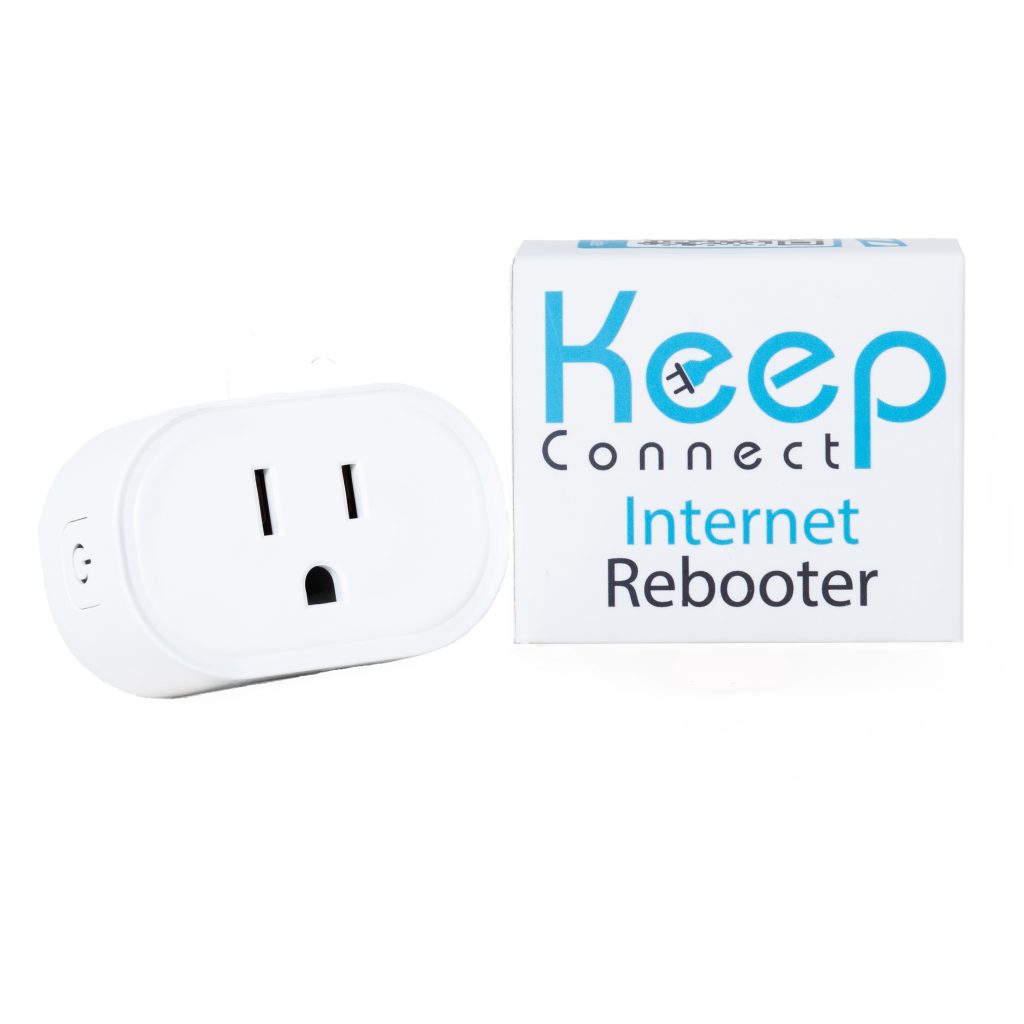
Keep Connect
The essential auto-rebooter
- Constantly monitors your internet health, 24/7/365
- Automatically reboots your router or modem the moment the connection drops
- Works with no app or account — plug it in over Wi-Fi (WPS) and it just works
- Optional email or SMS alerts when a reset happens or your ISP goes down
- Compact enough for apartments and small spaces
- Optional Premium Cloud app (iOS & Android) for remote management
Most homes & apartments · 4 × 2 × 2 in
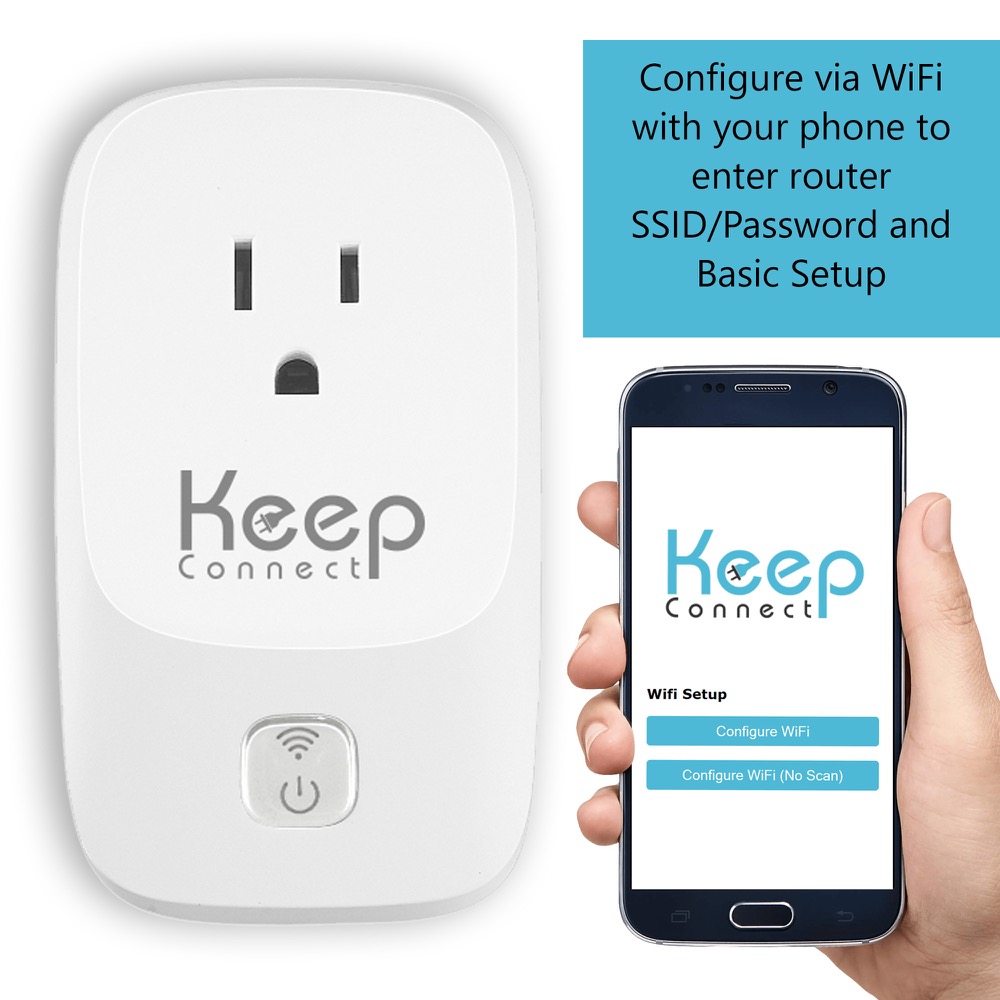
Keep Connect MAX
Most capableScheduling + smart-home power
- Everything in Keep Connect — monitoring and automatic reboot on outage
- Scheduled periodic reboots to stop slowdowns before they start
- Advanced heartbeat monitoring with ISP-outage alerts
- Built for smart homes — cameras, garage doors, and automation that can't drop offline
- Reboots your router and/or modem
- Optional Premium Cloud app for remote, multi-location management
Smart homes & whole-home uptime · 5 × 3 × 3 in
“It all happened without me noticing or having to physically intervene. … For me, that was money well spent.”
Frequently asked questions
Does rebooting my router actually fix slow internet?
How often should I reboot my router?
Can an old router cause permanently slow speeds?
What does Keep Connect actually do differently than a smart plug?
How do I test my internet speed accurately?
What counts as 'actually slow' internet?
Read next
How Often Should You Reboot Your Router?
And why most people get the timing wrong. A practical schedule that actually keeps speeds up.
ReadRouter vs. Modem: Which One Actually Needs Rebooting?
They look similar and people reboot the wrong one all the time. Here's how to tell them apart.
ReadIs It Your Internet or Just Your Wi-Fi?
A 2-minute test to find out whether the problem is your ISP or your own Wi-Fi signal.
ReadBest Automatic Router Rebooters in 2026
An honest comparison of Keep Connect, smart plugs, ezOutlet, and more — including where each one wins.
ReadAbout the author
Byron Johnson is an engineer and IoT product developer who designed and built Keep Connect, the automatic router rebooter. He has spent years helping people diagnose and fix flaky home and small-business internet. If troubleshooting by hand gets old, the device he built — Keep Connect — automates the single most effective fix on this page.